Table of contents
Introduction
English version of an article first published in Polish on 17 November 2026. Read the Polish original.
You will find the Google review link in your Business Profile under “Get more reviews”, and you download the QR code in the same place, but only on a computer. It takes a minute. The harder part is something else: getting customers to really use that link, and keeping their reviews from disappearing in the filter.
That is why there is less here about clicking through the profile and more about what happens afterwards: how to design the QR code, where to put it, when to ask and in what words. I show the examples on the made-up bike repair shop “Szprycha” (Polish for “spoke”) from the part about categories. The printed text on the mock-ups is in Polish, and I gloss it in the captions. The QR codes in the images are real and can be scanned: they open the instructions for the customer in the Polish version of this article, the same instructions you will find at the end of this page.
This is the sixth part of the series about Google Business Profile. Why buying reviews is not worth it, I described in the part about buying Google reviews(coming soon), and why real reviews sometimes do not show up, in the part about reviews that are not showing(coming soon).
What you will learn:
- Where the review link sits in the profile and why you can only make the QR code on a computer
- How to design a QR code with your logo and brand colours so that it still scans
- Where to put the QR code: 6 formats shown on a bike repair shop, and ideas for other industries
- When to ask for a review and in what words, with ready-made texts and emails to copy
- What Google’s rules forbid when you collect reviews
- How a customer adds a review on a phone and on a computer
Where to find the review link in your Business Profile?
According to Google Help, the path looks like this:
- 1Open your Business Profile on Google, ideally in a browser on a computer.
- 2In the reviews section, choose “Get more reviews”.
- 3Copy the link with the copy button. To save the QR code, right-click it and choose to save the image.
One limitation: you can generate the QR code only in a browser on a computer. On a phone you can copy just the link. For the customer, the link opens the review window for your business straight away, with no need to look it up in Maps. I wrote briefly about when this feature reached Google Help in the article about changes to Google Business Profile.
How to make a review QR code that looks good and scans?
The code from the Google profile is black and white and bare. For printing on a stand or a hang tag it is worth dressing it in your brand colours and logo. You can do that in any QR code generator by pasting in the link from the profile, or hand it to a graphic designer. Six rules I stick to:
Dark on light
Dark modules, light background. An inverted code, light on dark, will not be read by some phones. A brand colour is fine, but clearly darker than the background.
Margin around the code
Leave an empty band around the code, roughly four small squares wide. Artwork running into the code spoils the scan.
Logo only in the centre
A logo in the centre will work if the code has a high error-correction level. Do not cover the three large corner squares, the phone recognises the code by them.
Size to match distance
On a business card 2–3 cm is enough, on a stand at the till at least 5 cm, on a door or window more. The further away the customer stands, the bigger the code.
Always with a call to action
The code alone says nothing. Write next to it what happens after scanning: “Scan and write a Google review”.
Test before printing
Scan the finished design with two or three phones, from different distances and in poor light. Only then print.
Watch out for “dynamic” QR codes
Some generators do not store your link in the code, but their own address, which redirects onwards. After the trial period the redirect stops working and the printed stickers lead nowhere. Choose a static code, in which the link from the Google profile is stored directly.
Where to put the QR code? 6 formats shown on a bike repair shop
A QR code works where the customer has a moment and a phone in hand. At the till, in a queue, they rarely have both. That is why the best formats are the ones the customer takes away and finds later, at a calmer moment. You can scan all the codes below. The text printed on the mock-ups is in Polish, with an English gloss under each image.
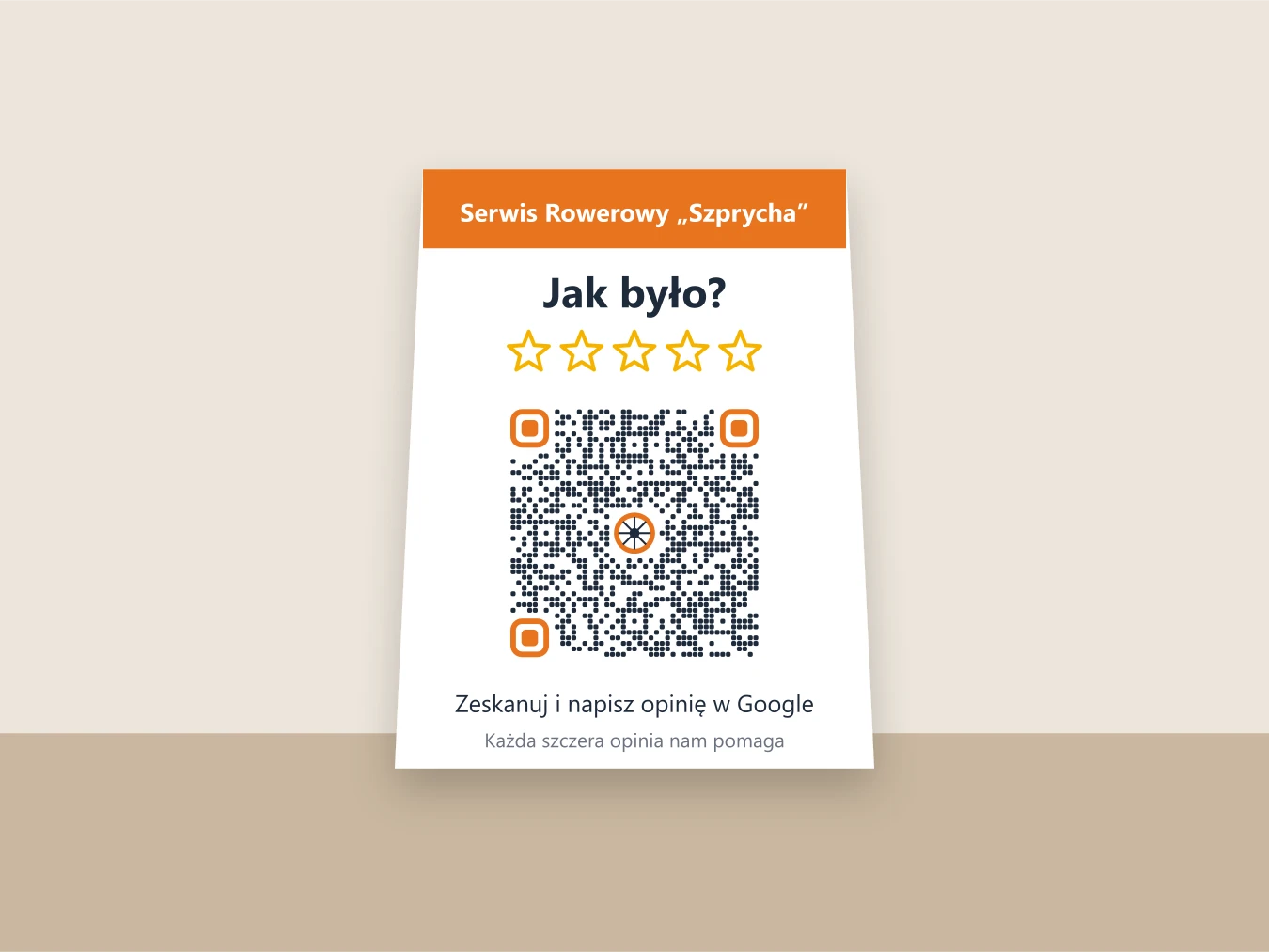
Counter stand
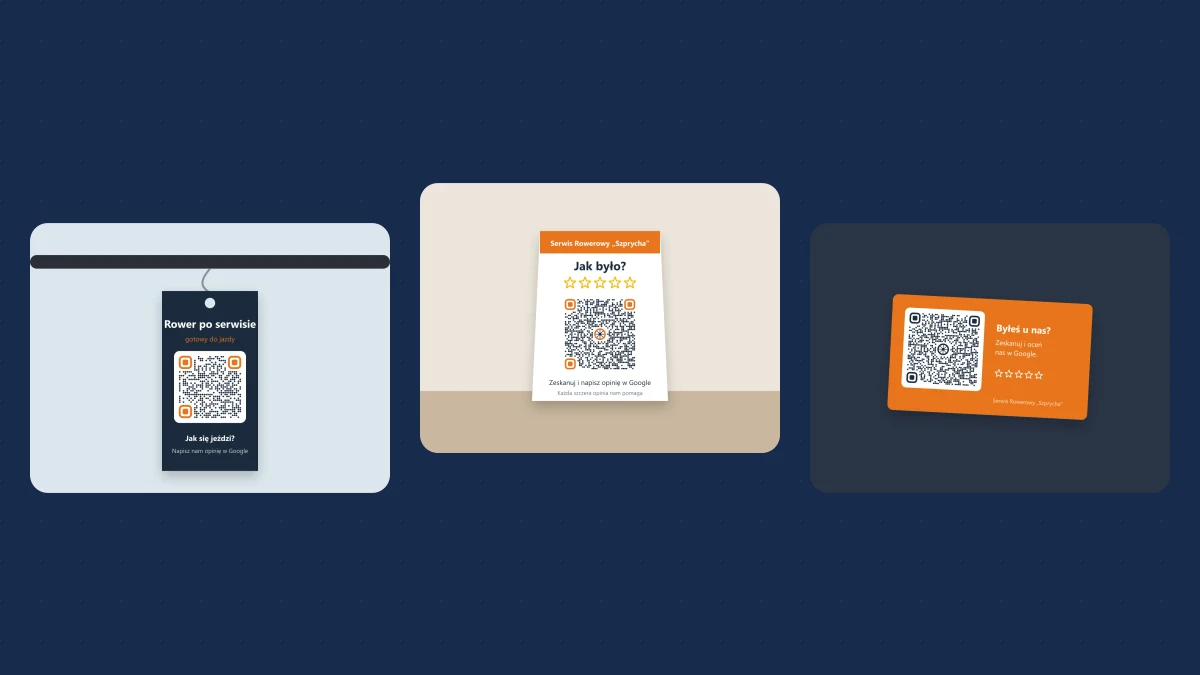
A code with the logo in the centre and in the brand colours. The question “How was it?” instead of “Give us 5 stars”, empty stars instead of filled ones.
Polish text on the print: “Jak było?” (How was it?), “Zeskanuj i napisz opinię w Google” (Scan and write a Google review), “Każda szczera opinia nam pomaga” (Every honest review helps us).
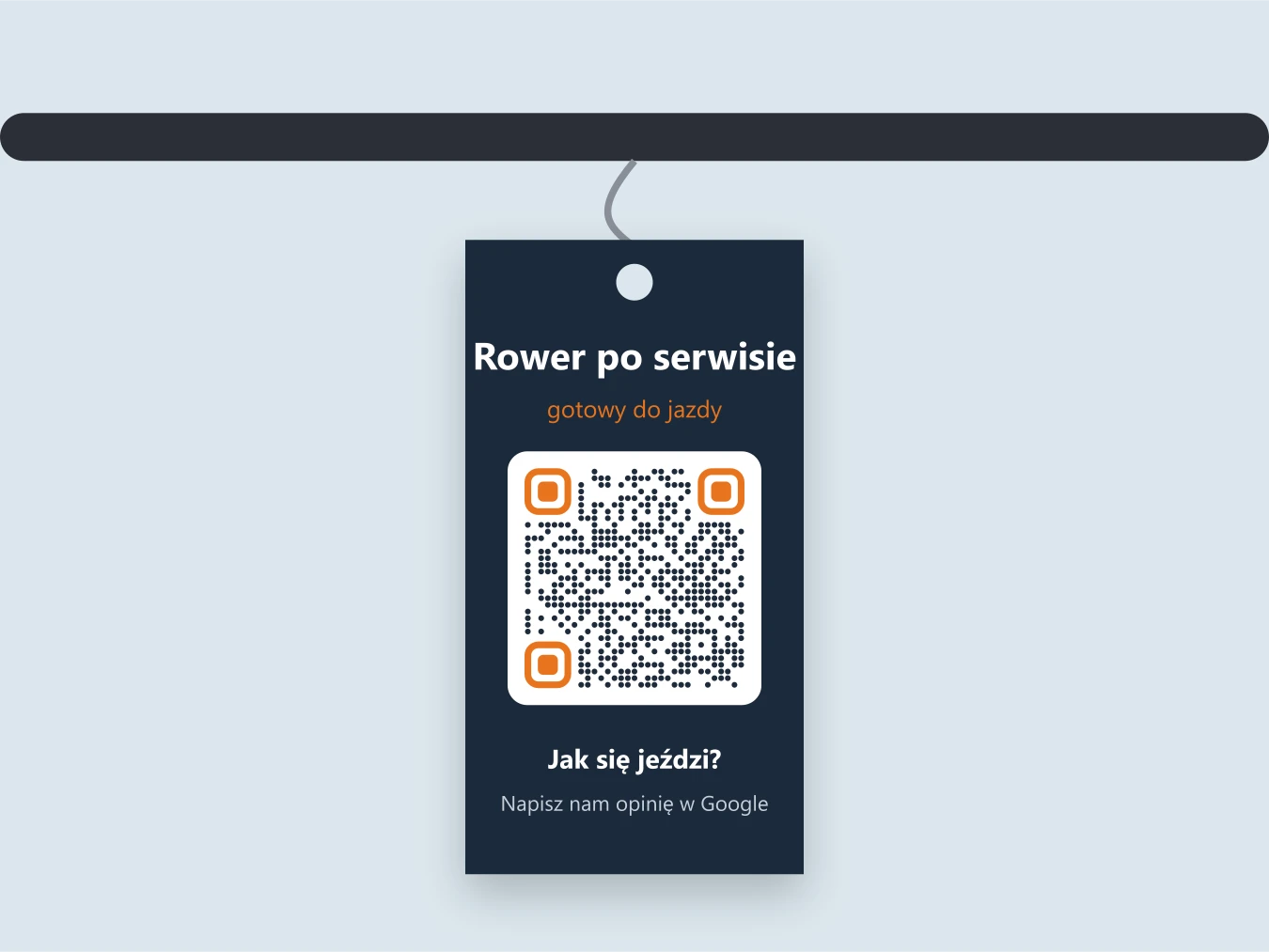
Hang tag after a service
The customer takes it away with the bike and finds it at home, when there is time. A code with round modules still scans.
Polish text on the print: “Rower po serwisie, gotowy do jazdy” (Bike serviced, ready to ride), “Jak się jeździ? Napisz nam opinię w Google” (How does it ride? Write us a Google review).
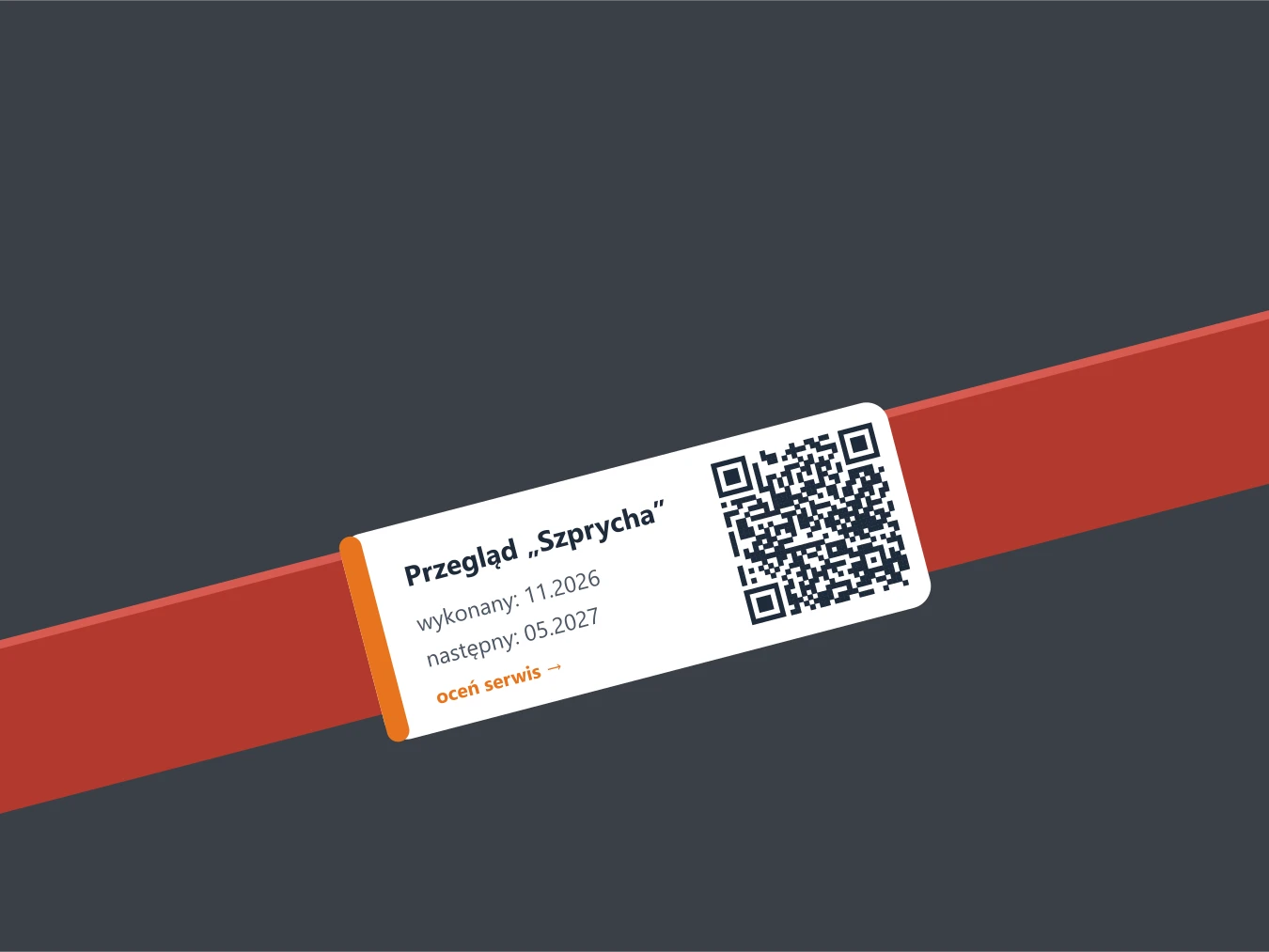
Service sticker
The service date gives the sticker a reason to stay on the frame. The code is a reminder about the review, the date about the next visit.
Polish text on the print: “Przegląd” (Service), “wykonany: 11.2026, następny: 05.2027” (done / next due), “oceń serwis” (rate the service).
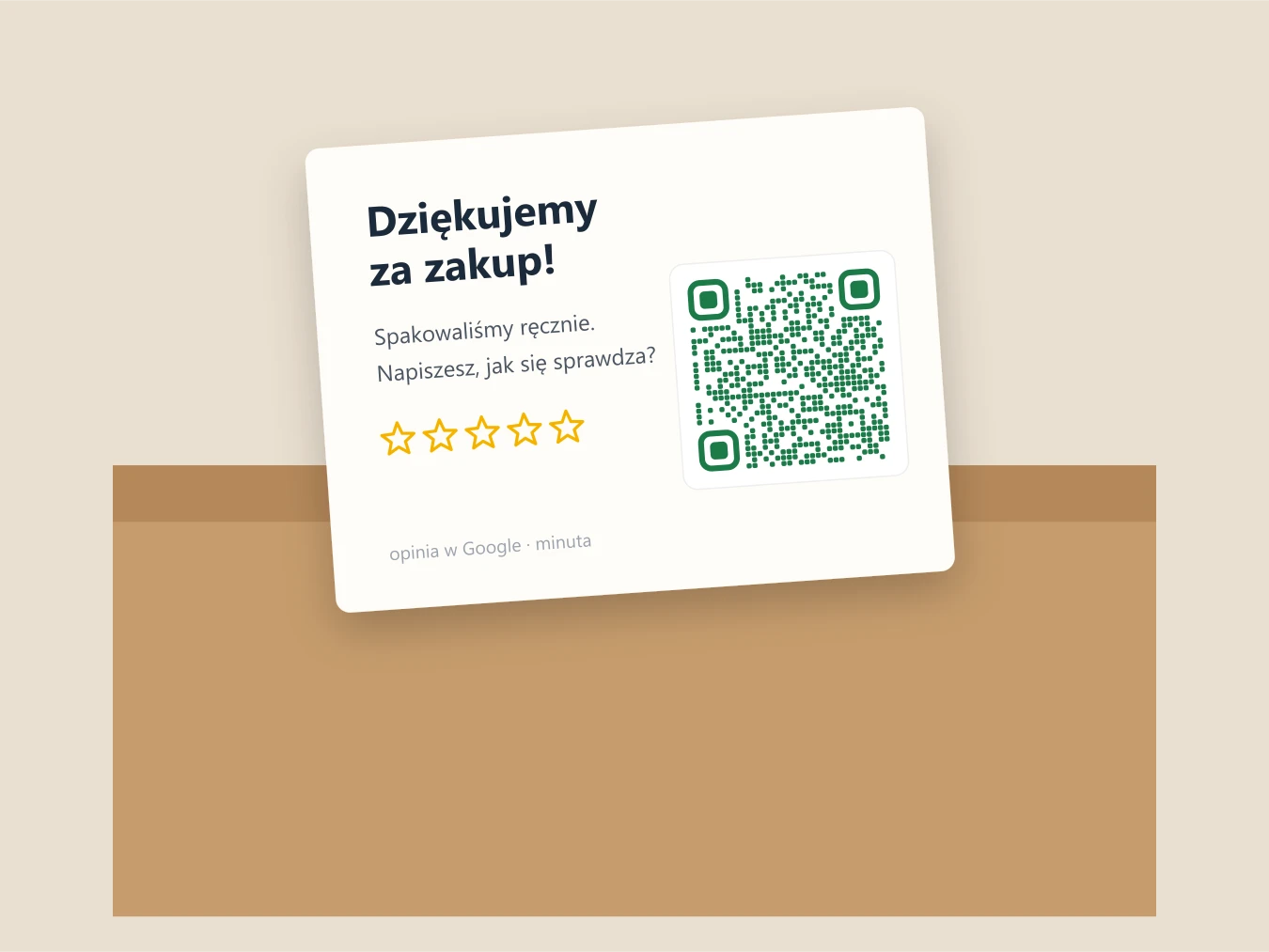
Card in the parcel
For a shop that ships orders or offers collection in person. The customer scans once they have checked the product, not at the till.
Polish text on the print: “Dziękujemy za zakup! Spakowaliśmy ręcznie. Napiszesz, jak się sprawdza?” (Thank you for your purchase! We packed it by hand. Will you tell us how it is working out?), “opinia w Google · minuta” (Google review, one minute).
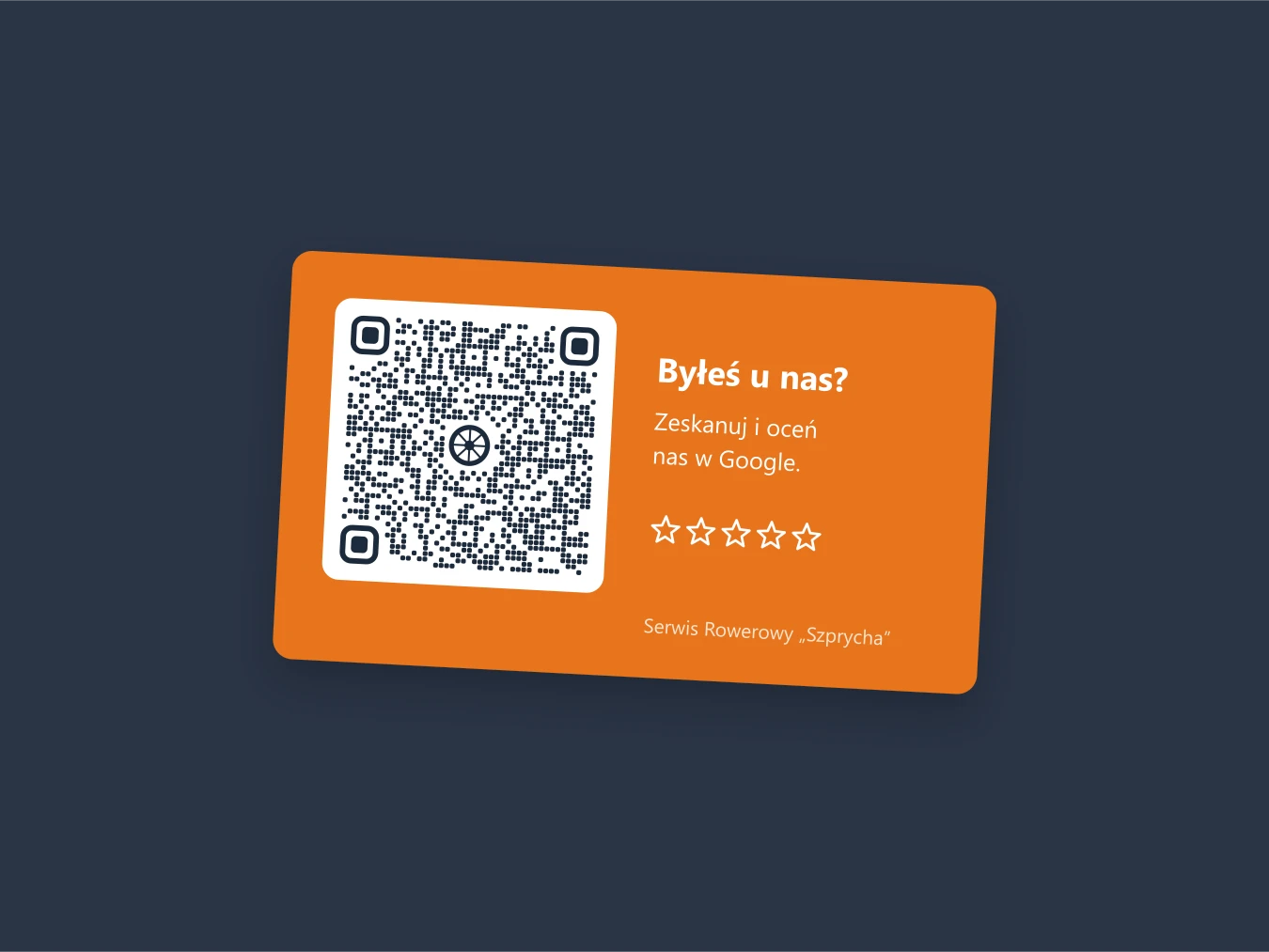
Back of a business card
For businesses that travel to the customer: a plumber, an electrician, a repair service. The card stays on the fridge, and the code with it.
Polish text on the print: “Byłeś u nas? Zeskanuj i oceń nas w Google.” (Have you been to us? Scan and rate us on Google.)
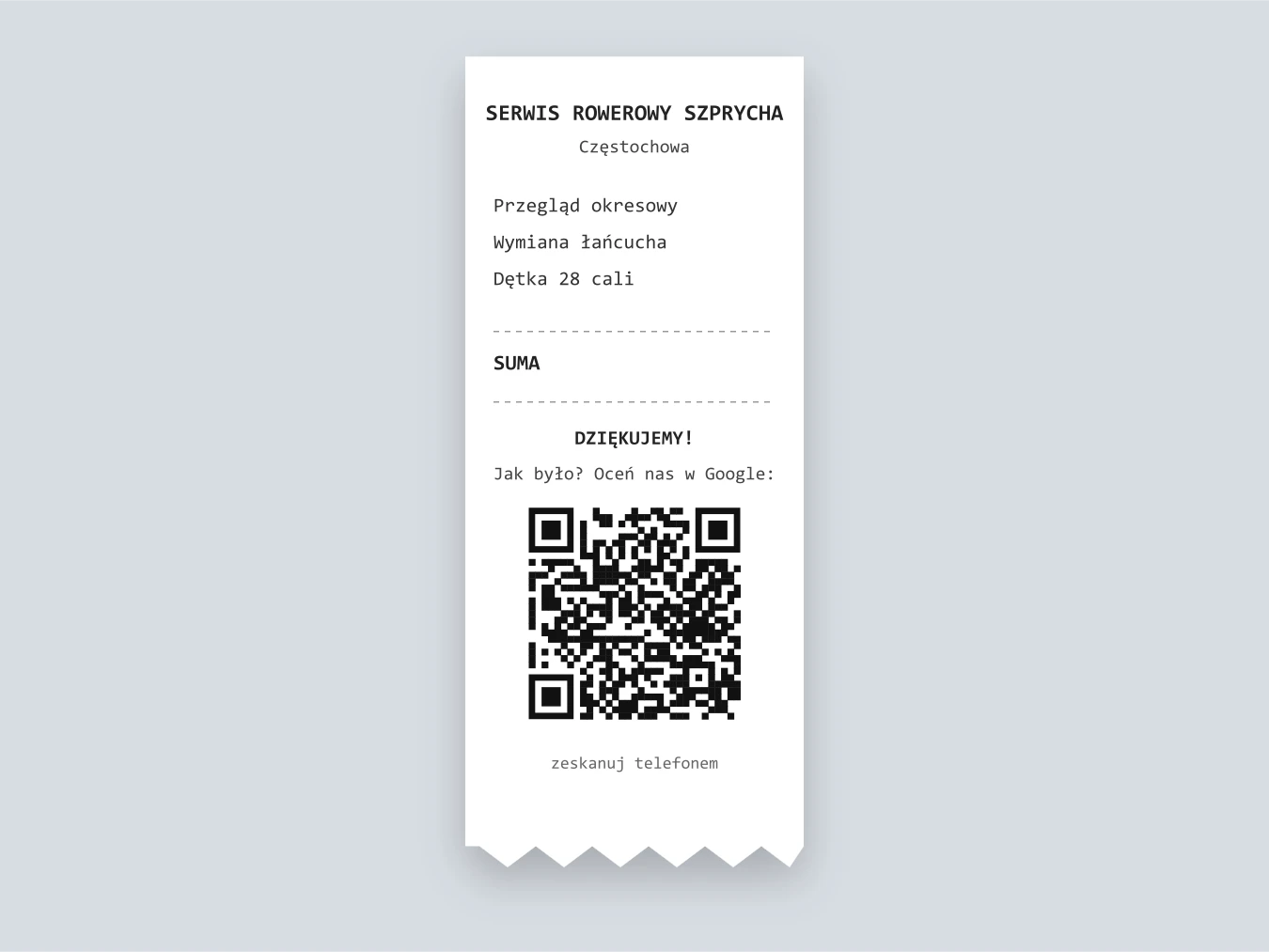
Receipt and invoice
Google itself names receipts as a good place for the link. The code prints with every sale at no extra cost.
Polish text on the print: “Dziękujemy! Jak było? Oceń nas w Google” (Thank you! How was it? Rate us on Google), “zeskanuj telefonem” (scan with your phone).
Pay attention to the words. None of the examples says “Give us 5 stars”. They say “Jak było?” (How was it?) and “Każda szczera opinia nam pomaga” (Every honest review helps us). This is not only a matter of style: Google’s rules forbid encouraging only positive reviews, and a neutral question also sounds honest.
Ideas for getting reviews in different industries
Not every business has a counter. A few solutions that fit specific industries:
Garage, repair shop, car wash
A hang tag on the mirror or the handlebars at collection. The customer finds it at home or on the first ride.
Installer, boiler servicing, air conditioning
A sticker with the service date and a QR code on the appliance. It stays for years and is a reminder about the next visit.
Hairdresser, beautician, clinic
An automatic text message from the booking system a few hours after the visit, with the review link.
Restaurant, café
A code in the menu or on the bill. Without bothering guests at the table.
Online shop with a collection point
A card in the parcel and an email after a few days, once the customer has used the product.
Law firm, accounting office, adviser
A link in the email footer and one personal message once the matter is closed. Here the tone counts, not automation.
Any business with a chat
A link at the end of a chat conversation, once the problem is solved. Google itself names this as a good place.
Any business with a social media account
A post with the link every now and then, and the link in WhatsApp messages. Google Help lists both channels.
The common denominator: the request reaches the customer after the service, not during it, and in a form they can put aside for later. “Tap your phone” NFC cards are also becoming more popular. They work exactly like a QR code, because the same link is stored in them. A seller who adds a “review guarantee” to the card is making a completely different kind of offer.
When and how to ask a customer for a review?
The best time is right after a job well done. The customer remembers the details, is satisfied, and you are in contact with them. After a week the request already feels out of place, and after a month the customer does not remember what it was about.
Three rules of tone. Ask every customer in the same way, not only those who look satisfied. Talk about a review, not about stars. And make one request with one link, without reminding three times. If someone did not respond, that is an answer too.
From my practice: what brings the most reviews
In local businesses a plain spoken request right after the job works best. No text message or email replaces the moment when the customer is satisfied and is facing the person who did the work for them. The QR code or the link is then only a pointer to where the review can be left.
In mail-order sales a note in the parcel works very well: a line saying that the order was packed for you by a specific person, named in full, their handwritten signature, and next to it a QR code with a request for a review. The parcel stops being anonymous, and the request is not yet another automatic email. One caveat: do not ask the customer to mention that person in the review, because Google’s rules forbid suggesting the content. I show what such a card can look like in the gallery of QR code formats.
Ready-made review request messages to copy
Swap in your business name and put your own link in place of [link]. Each message asks for an honest review, not for five stars.
Text message after the service
A few hours after collection
Hello, this is Szprycha Bike Service. Thank you for collecting your bike. If you have a moment, we would be grateful for a Google review, including anything we could do better: [link]
Thank-you email
The day after the job is finished
Subject: Thank you for visiting Szprycha Hello, Thank you for bringing your bike to our workshop. We hope everything is working as it should. If you have a minute, please leave us a Google review and tell us how it went: [link] We read every review and reply to each one. Best regards, The Szprycha team
WhatsApp or Messenger
When the customer wrote to you in that channel
Thanks for today! If anything is not right with the bike, just message us. And if you have a moment, leave us a Google review, it really helps: [link]
Out loud, at collection
When the customer is happy with the conversation
I’m glad everything is fine. If you find a moment at home, I’d be grateful for a Google review. The code is on your receipt.
Email and invoice footer
Always, in the background
How was our service? Write a Google review: [link]
Note at the till
On a stand next to the card terminal
How was it? Scan the code and write us a Google review. Every honest review helps us.
What not to do when collecting reviews?
Five things that look innocent but can end in removed reviews or a restricted profile:
01. A reward for a review
A discount, a free service, a coffee, entry into a prize draw. Google’s rules explicitly list money, discounts and free products or services.
02. Asking only happy customers
An “are you satisfied?” survey that sends only those who clicked “yes” to Google and everyone else to a form. The rules forbid discouraging negative reviews.
03. Quotas for staff
“Everyone has to collect 10 reviews a month”, or asking the customer to mention an employee’s name in the review. Both are explicitly in the rules.
04. A review on the spot, under pressure
A tablet at the till to fill in, “please do it now, I’ll wait”. Google writes that you must not require a review on the business premises or press for one.
05. A mass mailing to an old database
It is not explicitly forbidden, but a burst of reviews within a few days looks like a campaign to the filter, and some of the reviews may not appear.
The first four points are Google’s rules for content in Maps. The fifth is practice: I wrote about how the filter reacts to sudden bursts of reviews in the part about Google reviews that are not showing(coming soon).
How to add a Google review? Instructions for the customer
This section is for customers. If you run a business, you can link to it in your message instead of explaining everything from scratch. You need a Google account to add a review, and the review is public and shown under the name from your profile.
From a link or QR code
- Click the link or scan the code with your phone camera.
- If needed, sign in to your Google account.
- Choose the number of stars, describe how it went and post.
On a phone
- Open the Google Maps app and search for the business.
- Go to the business’s reviews and tap the stars.
- Write a few sentences, add a photo if you like, and post.
On a computer
- Sign in and open Google Maps.
- Search for the business and click “Write a review” on the left.
- Click the stars, write your review, add photos and post.
You can correct or delete your review later: in Maps open the menu, choose “Your contributions”, then “Reviews”, and next to the review choose “More” and “Edit review” or “Delete review”. After an edit, the review shows the date of the last change.
What to write? Specifics help other people most: what needed doing, how long it took, what you liked and what you did not. One specific sentence is worth more than “Recommended!”.
My view
Most businesses do not have a problem with customers being unwilling to write reviews. Their problem is that nobody asks, or that someone asks once every six months, the whole database at once. A QR code stuck next to the till and forgotten is not a system, it is decoration.
A system is a fixed part of customer service: after the job, every customer gets the same short request, in a form they can put aside for later. Add a reply to every review, because a customer who sees that the business writes back is more willing to write something too. How to reply, including to critical reviews, I show in the next part of the series, about how to respond to Google reviews.
Reviews do not come from a QR code. They come from the habit of asking for them after every good job.
FAQ: common questions
Does a Google review link expire?
Google does not state an expiry date. The link leads to a specific profile, so it usually works for as long as that profile does. If you have merged duplicates, changed the owner or something else about the profile has changed, check the link and the QR code on your printed materials before you order the next print run.
Can I send the link to every customer in my database?
Google’s rules do not forbid it, but there are two catches. Sending emails and text messages to a customer list may require the customers’ consent to that kind of communication (in Poland this comes from Polish electronic communications law; other countries have their own rules), so check what they agreed to. And a sudden burst of reviews after a mass mailing can be stopped by Google’s filter. It is better to ask as you go, after each completed job.
Does the customer need a Google account to add a review?
Yes. Only a signed-in user can add a review, and the review is public and shown under the name from their Google profile. Most people with an Android phone or a Gmail address already have an account, so scanning the code is usually enough.
Can I thank a customer for a review with a small gift?
No, if the gift is in exchange for the review. Google’s rules forbid offering money, discounts and free products or services for posting a review. Say thank you in words and in your reply under the review. If you give a small extra to all customers, do not tie it to the request for a review.
Can I make a review QR code on a phone?
Not in the Google profile itself. Google Help says the QR code can only be generated in a browser on a computer. On a phone you can copy the link and paste it into any QR code generator, but then check that the generator does not swap the link for its own paid redirect address.
Worth remembering
- You will find the review link and QR code in your Business Profile: the reviews section, then “Get more reviews”. The QR code can only be downloaded in a browser on a computer.
- A QR code can have colours and a logo if the modules are dark on a light background, there is a margin around it and the logo covers only the centre. Scan it with several phones before printing.
- A QR code works best where the customer has a moment and a phone in hand: on a hang tag after a service, in a parcel, on a receipt, in an email footer.
- The best time to ask is right after a job well done. Ask every customer in the same way, not only the happy ones.
- You must not give a discount, a gift or a free service for a review. You also must not discourage criticism or set review quotas for staff.
- Do not require a review on the spot. A QR code at the till is fine, pressure and a tablet to fill in are not.
- The customer needs a Google account and their review is public. The shortest route is a link or QR code that opens the review window straight away.
Summary
You get the review link and QR code from your profile in a minute: “Get more reviews”, copy, save the image on a computer. You can dress the code in colours and a logo as long as you keep the contrast, the margin and the corners untouched.
What counts is what comes next. A code in a form the customer takes away, a request right after the job, the same for everyone, and no rewards or filtering. Reviews collected this way arrive evenly, look natural and do not disappear in the filter.
Sources and materials
Google Help pages in their Polish version:
- Pomoc Profilu Firmy – Tworzenie linku lub kodu QR w celu uzyskania opinii (Google Business Profile Help: creating a link or QR code to get reviews)
- Pomoc Map Google – Treści zabronione i podlegające ograniczeniom (Google Maps Help: prohibited and restricted content)
- Pomoc Map Google – Dodawanie, edytowanie i usuwanie opinii oraz ocen (Google Maps Help: adding, editing and deleting reviews and ratings)
From creating a profile to ranking in Maps
13 parts you can read in any order
Start here
Google Business Profile SEO: the complete guide
 Part 1
How to create a Google Business Profile
Step by step, with premises or as a service-area business.
 Part 2
Verification and suspension
Video, appeal, contacting Google.
 Part 3
Categories, name and description
The strongest factor you set yourself.
 Part 4
Photos on your profile
What to add, what to remove, why Google rejects them.
 Part 5
Access, roles and recovery
Who should own the profile.
 Part 6
Review link and QR code
You are reading this
 Part 7
How to respond to reviews
6 real replies with commentary.
 Part 8
Reviews that do not show
Coming soon · 23 Nov 2026
 Part 9
How to remove a Google review
Coming soon · 26 Nov 2026
 Part 10
Buying reviews
Coming soon · 29 Nov 2026
 Part 11
Deleting a profile and duplicates
Coming soon · 2 Dec 2026
 Part 12
Ranking in Google Maps
Coming soon · 5 Dec 2026
 Part 13
Tools for many profiles
Coming soon · 8 Dec 2026
Want more reviews from real customers?
I will prepare the link and QR code, choose a format for your industry, write the review request messages and set the moment they are sent. In line with Google’s rules.
See local SEOHow this text was written
I will not pretend it was written entirely by hand, by candlelight. For the research, the proofreading and the code of this page I used a language model. It is a good tool for digging through documentation and catching the typos you no longer see on the third read of your own text. The English version was also prepared with a model, from my Polish original.
What the model did not do: it did not choose the topic, form the arguments or decide what this data means for your site. That stays with me, as does the last word on what goes into the text and what comes out of it.
Where the model helped
- digging through sources and organising data
- proofreading and the English version of the text
- code, page layout and infographics
What stays with me
- the choice of topic and what is worth saying about it
- the arguments, the reading of the data and the conclusions
- fact-checking and the decision on what goes into the text

Written by
Sebastian Baryś
Freelance SEO specialist · Częstochowa, Poland, and remote
I started when nobody had dreamt of Core Web Vitals and rankings were checked by hand. Today I work on making companies visible not only in Google, but wherever people ask questions. I write only about things I check myself in client projects.